
How to Review Confluence Requirement Changes Before Handoff
Compare two published Confluence page versions, review changed permissions and requirements, and record decisions before handing work to Engineering and QA.
Before handing a Confluence specification to Engineering and QA, compare it with the version the team previously agreed on. Review changed permissions, values, and acceptance criteria, then record what needs to change in implementation and testing. Reading only the latest page can hide a removed requirement. A version comparison reveals that removal; the team still needs to confirm its intent.
A requirement can look familiar and still mean something different. A permission expands from admins to editors. A download link stays active for three days instead of one. An export limit doubles, while availability narrows to a pilot group.
This guide uses Report Export — Handoff Requirements, a fictional page with two published versions in a Confluence development environment. The screenshots show the real text and table comparisons from that demonstration.
We develop Page Compare at BlueGrove Labs. Its Marketplace name is Compare Any Two Pages – Visual Diff for Confluence.
1. Choose the version your team previously reviewed
The most useful starting point is the version used for the previous agreement, estimate, or test plan. That may be several revisions behind the current page.
In this example, version 1 is the handoff baseline. Version 2 contains the proposed changes. Both are published versions of the same Confluence page; this walkthrough does not compare unpublished editor drafts.
Before opening a comparison, establish three things:
- Which page contains the requirements?
- Which published version did the team previously review?
- Which published version is now being handed over?
Write those version numbers in the review notes. Choosing a specific version on each side makes it clear which content the discussion concerns, even if someone updates the page during the review.
2. Choose the comparison workflow
Confluence already supports comparing versions of the same page through Version history. For a straightforward review, that may be all your team needs. Open the page’s history, select the relevant versions, and inspect the differences. The exact controls can vary with your Confluence interface. Atlassian documents the native workflow in its page editing and version history guide.
An additional app is a workflow choice. Here we use Page Compare to read the changes in a unified view, check the two versions side by side, and share a comparison with specific versions selected. If the native comparison already gives your reviewers enough context, you can apply the same review method there.
3. Review wording changes in the unified view
With the app installed, start from the requirements page:
- Open More actions (•••) → Apps → Compare this page. Some Confluence interfaces show the app action directly.
- Keep the current page selected on both sides and change Before to Version 1.
- In this example, After stays at Latest version · v2. Select Compare, then confirm the result header shows v1 → v2. The numbered versions in that header identify what you are actually reviewing.
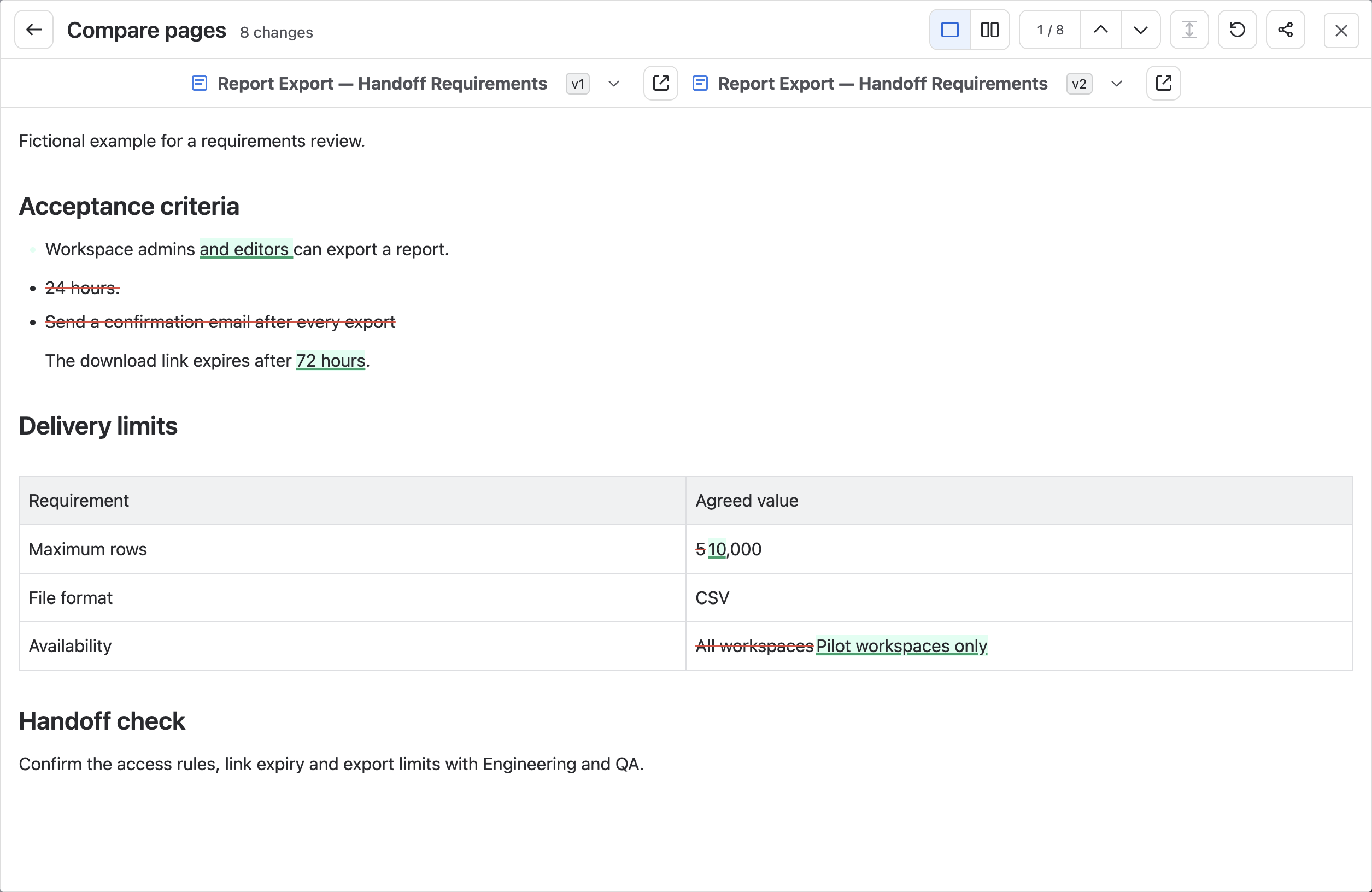
- Select Unified to read additions and removals in context.
 View full-resolution image (opens in a new tab)
 Version 1 says:
Workspace admins can export a report.
Version 2 expands this to workspace admins and editors. That changes who can use the feature. The reviewer should check whether the permission rules and tests reflect the wider audience.
The download link also changes from 24 hours to 72 hours. Anyone implementing expiry behavior or writing boundary tests needs the new value.
A third change is easy to miss when reading only the latest version: “Send a confirmation email after every export” has been removed entirely. Its absence does not explain the author’s intent. Ask whether the email requirement was deliberately withdrawn or accidentally omitted.
The comparison shows the changed wording. The people responsible for the requirement still need to decide what it means for the handoff.
4. Check requirement values side by side
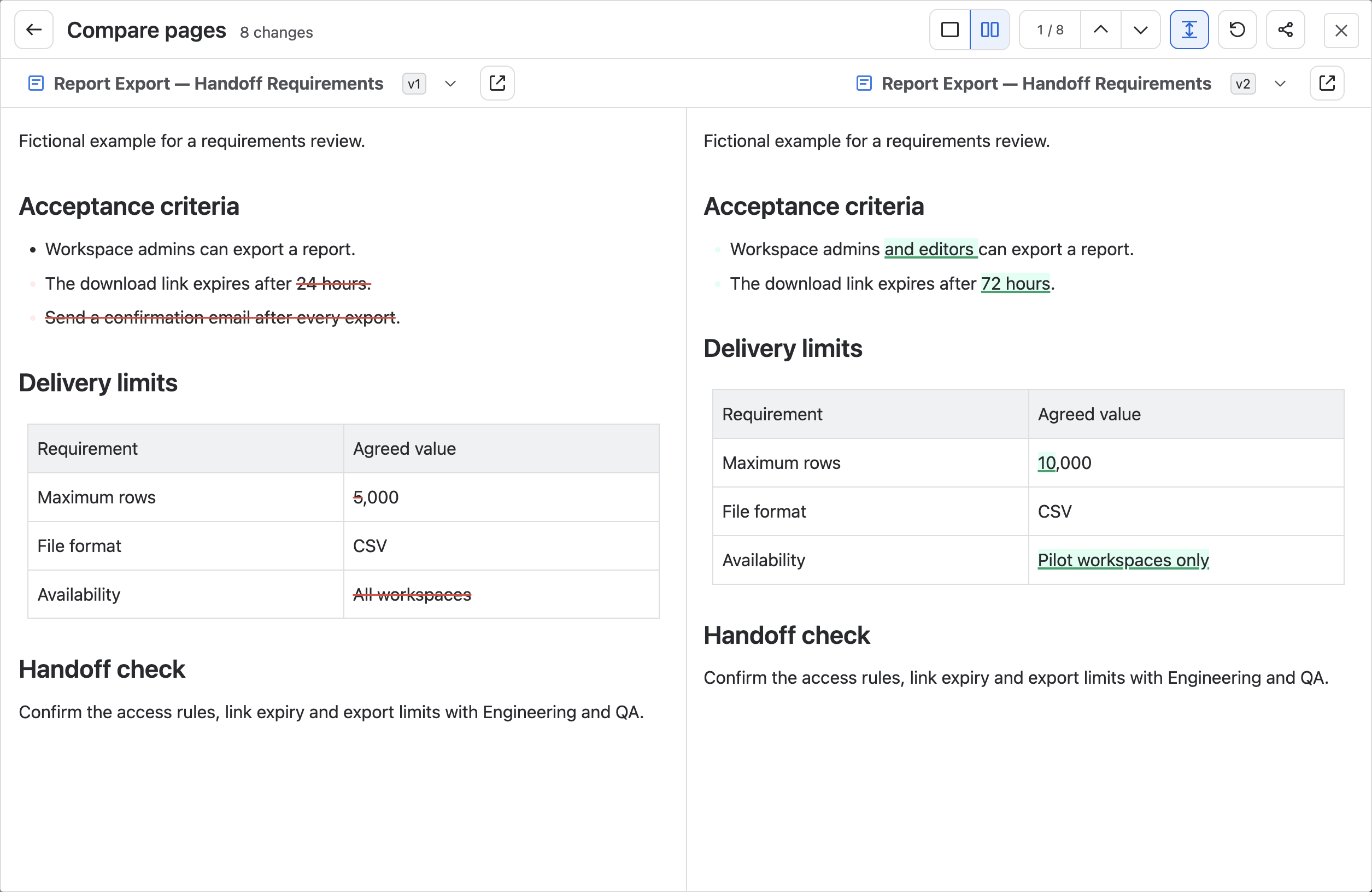
Switch to the side-by-side view to inspect the old and new tables together. This is useful when a familiar row has acquired a different value.
 View full-resolution image (opens in a new tab)
 The maximum export size increases from 5,000 to 10,000 rows. File format remains CSV. Availability changes from All workspaces to Pilot workspaces only.
That last change matters alongside the expanded user permission. More roles can export, but fewer workspaces receive the feature. Reviewing either statement alone could lead to an incomplete implementation or test plan.
The unchanged CSV row also provides useful context: this revision does not request another file format.
The toolbar counts change markers, which can include separate removals and additions for one replacement. Use the review record below to track business changes.
5. Record decisions for the handoff
There are five business changes in this example. A short review record connects each one to a question the team must resolve.
| Change | Handoff question | Record before handoff |
|---|---|---|
| Admins → admins and editors | Should editors have the same export access as admins? | Confirm the intended permission rules and required tests. |
| Link expiry: 24 → 72 hours | Do implementation and expiry tests use the new duration? | Identify the work needed to update both. |
| Confirmation email removed | Is removing the email requirement intentional? | Record the requirement owner’s answer. |
| Maximum rows: 5,000 → 10,000 | Can the agreed export behavior handle the larger limit? | Record validation needed at and beyond the limit. |
| All workspaces → pilot workspaces | How will eligible workspaces be identified? | Name the pilot selection rule and its owner. |
These are review prompts, not completed decisions. Keep the answers in the page comments or your team’s existing review record. Include the page title, both version numbers, the reviewer, the date, and any unresolved questions. If the answers lead to another revision, compare that published version before handing it over.
Page Compare reads the compared content without editing it. It does not make approval decisions or write the review outcome back to the page.
6. Share the comparison you discussed
Confirm the Before and After numbers in the result header, then use Share comparison. The link includes the actual numbered versions and reading mode, even when you initially selected Latest. It will not advance to a later page revision. Add it to the handoff record so colleagues can open the same comparison. Recipients still need permission to access the underlying content; the link does not grant access. See the result controls and sharing instructions.
A fixed-version comparison link is a useful reference, but it is not a permanent archive or an approval record. Record the team’s decisions separately, and use your established approval process where one is required.
The handoff is ready when the changed expectations are understood and the remaining questions have owners. A readable diff helps the team reach that point with the relevant wording and values in front of them.
For the comparison controls and sharing workflow, see the Page Compare documentation.